




Yuav kho li cas "Ua tiav rau iPhone Tshiab" daig?

Kev teeb tsa lub iPhone tshiab feem ntau yooj yim, tab sis qee zaum cov txheej txheem tuaj yeem daig rau ntawm "Ua tiav rau ntawm iPhone Tshiab" screen. Es tsis txhob ua tiav qhov kev teeb tsa thiab coj koj mus rau Home Screen, lub iPhone yuav nyob rau tib nplooj ntawv rau ob peb feeb lossis ntev dua. Qhov no tuaj yeem ua rau koj chim siab tshwj xeeb tshaj yog thaum koj twb tau hloov koj cov ntaub ntawv thiab tsuas yog xav pib siv koj lub cuab yeej tshiab.
Hauv phau ntawv qhia no, peb yuav piav qhia txog yuav kho lub iPhone tshiab li cas rau ntawm "Finish on New iPhone," pib nrog cov kev daws teeb meem yooj yim thiab txav mus rau kev kho lub kaw lus siab heev.

1. Kuv Yuav Kho Li Cas "Ua tiav rau iPhone Tshiab" Ntxeev?
1.1 Tos ib pliag ntxiv
Yog tias koj xa cov ntaub ntawv ntau heev, kev teeb tsa yuav siv sijhawm me ntsis. Khaws ob lub iPhones ze ua ke, txuas nrog lub zog, thiab tos me ntsis ntxiv. Yog tias lub vijtsam tseem tsis hloov pauv rau lub sijhawm ntev heev, txav mus rau qhov kev kho tom ntej.
1.2 Tshawb xyuas koj qhov kev sib txuas Wi-nkaus
Kev sib txuas Wi-Fi tsis zoo lossis tsis ruaj khov yuav cuam tshuam kev teeb tsa iPhone. Xyuas kom tseeb tias ob lub cuab yeej txuas nrog lub network txhim khu kev qha thiab nyob ze rau lub router yog tias ua tau.
1.3 Khaws Ob Lub iPhones kom them
Txuas ob lub iPhones rau lub zog thaum ua tiav kev teeb tsa. Qhov no tiv thaiv kev hloov pauv kom tsis txhob cuam tshuam yog tias ob lub cuab yeej tsis muaj roj teeb lawm.
1.4 Rov pib dua lub iPhone tshiab
Kev pib dua yooj yim tuaj yeem kho cov teeb meem software ib ntus. Ntawm cov qauv Face ID, nias sai sai Volume Up , nias sai sai Volume Down , ces tuav lub Sab khawm kom txog thaum lub logo Apple tshwm sim.
1.5 Rov pib dua ob lub iPhones
Yog tias lub iPhone tshiab tseem daig, rov pib dua ob lub cuab yeej. Tom qab lawv rov qhib dua, muab lawv tso ze ua ke, txuas lawv rau Wi-Fi thiab fais fab, thiab sim teeb tsa dua.
1.6 Hloov kho lub iPhone qub
Qee zaum iOS version qub dhau lawm yuav cuam tshuam rau kev xa cov ntaub ntawv. Ntawm koj lub iPhone qub, mus rau Chaw> General> Software Update thiab nruab txhua qhov hloov tshiab muaj ua ntej sim dua.
1.7 Sim ib qho iCloud thaub qab
Yog tias kev xa xov tooj ncaj qha mus rau iPhone tseem daig, siv iCloud backup hloov. Backup koj lub iPhone qub, rov pib dua qhov teeb tsa iPhone tshiab, thiab xaiv qhov kev xaiv los rov qab los ntawm iCloud backup.
1.8 Tshawb xyuas Apple lub System Status
Kev teeb tsa thiab kev qhib ua haujlwm yuav raug cuam tshuam los ntawm kev tsis ua haujlwm ib ntus ntawm Apple cov kev pabcuam. Mus saib nplooj ntawv System Status ntawm Apple kom pom seb cov kev pabcuam xws li iCloud lossis kev qhib lub cuab yeej puas muaj teeb meem.
1.9 Pib dua lub iPhone thiab Pib Dua
Yog tias tsis muaj dab tsi ua haujlwm, koj tuaj yeem rho tawm lub iPhone tshiab thiab rov pib dua cov txheej txheem teeb tsa. Qhib
Chaw
, tap
General
, xaiv
Hloov lossis Reset iPhone
, ces xaiv
Rho tawm tag nrho cov ntsiab lus thiab chaw
kom pib dua lub cuab yeej.
Xyuas kom tseeb tias cov ntaub ntawv tseem ceeb tau thaub qab ua ntej rho tawm lub cuab yeej.
2. Cov Nyiaj Ntxiv: Kev Kho Dua Tshiab rau Cov Teeb Meem iPhone System nrog AimerLab FixMate
Yog tias qhov teeb meem "Finish on New iPhone" yog los ntawm qhov teeb meem iOS system tob dua, kev daws teeb meem ib txwm yuav tsis txaus. Hauv qhov xwm txheej no, kev kho iOS system xws li AimerLab FixMate yuav tsim nyog xav txog.
FixMate yog tsim los daws teeb meem ntawm ntau yam teeb meem ntawm iPhone thiab iPad yam tsis tas yuav kom cov neeg siv ua cov txheej txheem firmware nyuaj. Nws tuaj yeem pab tau rau cov teeb meem xws li lub cuab yeej daig rau ntawm lub logo Apple, hom rov qab, khau raj rov qab, cov ntxaij vab tshaus khov, lossis lwm yam kev coj cwj pwm iOS tsis zoo.
Yuav kho cov teeb meem ntawm iPhone nrog AimerLab FixMate li cas:
- Rub tawm thiab nruab FixMate rau ntawm koj lub khoos phis tawj Mac lossis Windows.
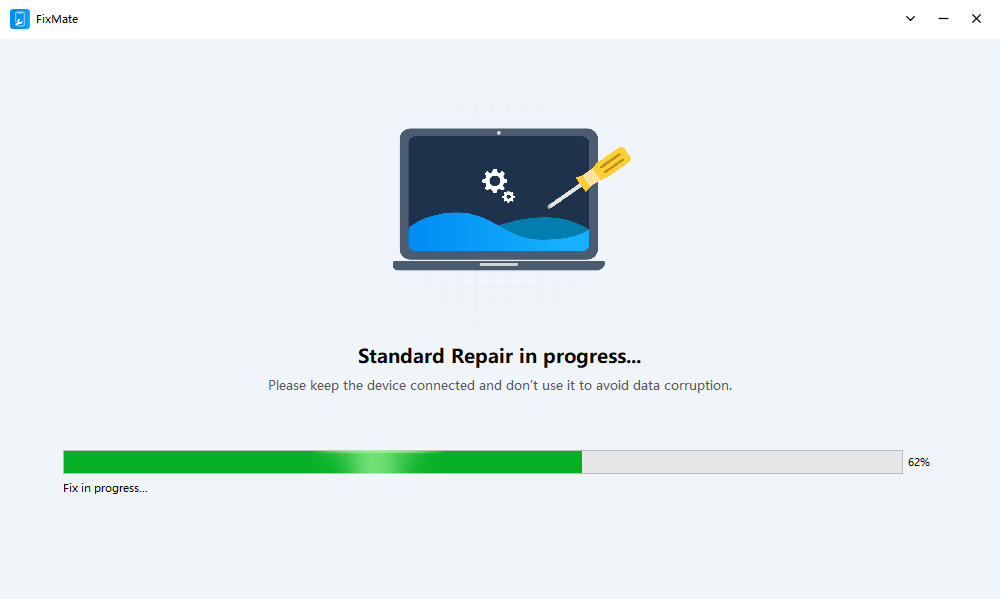
- Txuas koj lub iPhone rau lub khoos phis tawj nrog lub USB cable uas sib xws, tso tawm FixMate, thiab xaiv qhov kev xaiv kho iOS system tsim nyog: Kev Kho Txheem lossis Kev Kho Sib Sib Zog
- Ua raws li cov lus qhia ntawm qhov screen kom d rub tawm cov firmware pob khoom pom zoo rau koj lub cuab yeej.
- Paub meej tias kho thiab cia FixMate ua tiav cov txheej txheem kho.
- Thaum kho tiav lawm, tshem lub iPhone tawm thiab xyuas seb cov txheej txheem teeb tsa puas ua haujlwm li qub.
3. Cov lus xaus
Yog koj nias "Finish on New iPhone" ces qhov teeb meem ntawd yuav ua rau koj tsis xav teeb tsa ib lub tshiab sai sai. Zoo hmoo, qhov teeb meem no feem ntau yog ib ntus xwb thiab koj kho tau los ntawm kev kuaj xyuas koj qhov kev sib txuas Wi-Fi, them ob lub iPhones, rov pib dua, hloov kho iOS, lossis sim siv iCloud backup es tsis txhob hloov mus rau lwm lub.
Yog tias qhov teeb meem tseem muaj tom qab cov kev daws teeb meem yooj yim no, qhov teeb meem yuav muaj feem cuam tshuam nrog qhov yuam kev loj dua ntawm iOS system. Hauv qhov xwm txheej ntawd, AimerLab FixMate yog ib qho kev xaiv zoo rau kev kho iPhone system siab heev. Nws cov txheej txheem kho uas muaj kev taw qhia tuaj yeem pab daws cov teeb meem ntsig txog lub kaw lus yam tsis tas yuav tsum tau daws teeb meem nyuaj.
Rau cov neeg siv uas tau sim cov kev kho tus qauv tab sis tseem tsis tuaj yeem dhau qhov screen teeb tsa,
FixMate
yog ib qho kev xaiv daws teeb meem zaum kawg uas siv tau tiag tiag uas tsim nyog sim ua ntej nrhiav kev pab los ntawm cov kws tshaj lij.
- Yuav kho li cas iOS 26 siv sijhawm ntev mus download?
- Yuav ua li cas thiaj pom tau qhov chaw uas neeg feem ntau pom ntawm iPhone?
- Vim li cas iOS 26 thiaj qeeb ua luaj?
- Yuav kho li cas "Muaj qhov yuam kev txheeb xyuas tus password ntawm koj lub iPhone"?
- Yuav ua li cas rub tawm iOS 27 Beta ntawm iPhone?
- Yuav kho cov ntaub ntawv iPhone daig rau ntawm qhov tos li cas?
- Yuav Ua Li Cas Spoof Pokemon Go ntawm iPhone?
- Txheej txheem cej luam ntawm Aimerlab MobiGo GPS Qhov Chaw Spoofer
- Yuav hloov qhov chaw ntawm koj iPhone li cas?
- Sab saum toj 5 Fake GPS Qhov Chaw Spoofers rau iOS no
- GPS Qhov Chaw Nrhiav Lus Txhais thiab Spoofer Cov Lus Qhia
- Yuav Ua Li Cas Hloov Koj Qhov Chaw Ntawm Snapchat
- Yuav Ua Li Cas Nrhiav / Qhia / Ncua Qhov Chaw ntawm iOS li?