




Vim li cas iOS 26 thiaj qeeb ua luaj?

Kev hloov kho iPhone mus rau iOS version tshiab yuav tsum ua rau lub cuab yeej zoo dua, tsis yog phem dua. Txawm li cas los xij, tom qab txhim kho iOS 26, qee tus neeg siv yuav pom tias lawv lub iPhone qeeb lossis tsis teb. Cov apps yuav siv sijhawm ntev dua los qhib, cov duab kos yuav ua rau tsis meej, kev scrolling yuav tsis zoo, thiab cov keyboard lossis kov tswj qee zaum yuav teb qeeb.
Kev ntsib teeb meem qeeb tom qab hloov kho iOS loj tsis tas txhais tau tias koj lub iPhone muaj teeb meem kho vajtse. Lub operating system tshiab tuaj yeem ua rau muaj cov txheej txheem tom qab ntxiv, teeb meem sib xws, kab laum ib ntus, thiab lwm yam uas cuam tshuam rau kev ua haujlwm. Zoo hmoo, feem ntau cov laj thawj feem ntau tuaj yeem daws tau nrog ob peb kauj ruam yooj yim.
Hauv phau ntawv qhia no, peb yuav piav qhia vim li cas iOS 26 thiaj qeeb heev, qhia txog ntau txoj hauv kev sai los txhim kho kev ua haujlwm, thiab qhia txog cov cuab yeej siab heev uas tuaj yeem pab thaum qhov teeb meem cuam tshuam nrog cov teeb meem iOS system tob dua.
1. Vim li cas iOS 26 thiaj qeeb ua luaj?
Yog tias koj lub iPhone qeeb tom qab hloov kho mus rau iOS 26, ib lossis ntau qhov laj thawj hauv qab no yuav yog lub luag haujlwm.
1.1 Kev Ua Tom Qab
Tom qab hloov kho tshiab loj, iOS yuav txuas ntxiv ua haujlwm tom qab, xws li indexing cov ntaub ntawv, teeb tsa cov duab, hloov kho cov ntaub ntawv, thiab optimizing lub system resources. Cov txheej txheem no tuaj yeem siv CPU thiab chaw cia khoom ntxiv ib ntus, ua rau koj lub iPhone zoo li qeeb dua.
1.2 Qhov Chaw Cia Khoom Txwv
Ib lub iPhone uas muaj qhov chaw cia khoom tsawg heev yuav muaj teeb meem kev ua haujlwm. iOS xav tau qhov chaw rau cov ntaub ntawv ib ntus, cov ntaub ntawv app, cov txheej txheem system, thiab lwm yam kev ua haujlwm. Yog tias koj qhov chaw cia khoom yuav luag puv, kev tshem tawm cov ntaub ntawv tsis tsim nyog tuaj yeem pab tau.
1.3 Cov Apps Uas Tsis Siv Lawm
Some apps may not initially be fully optimized for a new iOS release. An outdated application can crash, freeze, consume excessive resources, or cause noticeable lag. Updating apps through the App Store can resolve compatibility problems.
1.4 Kab laum iOS
Cov software tshiab qee zaum yuav muaj cov kab laum uas cuam tshuam rau cov qauv iPhone lossis cov yam ntxwv tshwj xeeb. Cov teeb meem kev ua tau zoo yuav suav nrog kev teb qeeb ntawm kev kov, cov yeeb yaj kiab tsis meej, cov app crashes, lossis khov ib ntus. Cov kev hloov tshiab iOS yav tom ntej yuav daws tau cov teeb meem no.
1.5 Cov Khoom Siv Kho Vajtse Qub Dua
Txawm hais tias iOS 26 yuav txhawb nqa koj lub iPhone, cov software tshiab dua tuaj yeem tso qhov kev xav tau sib txawv ntawm lub cuab yeej. Cov iPhones qub dua yuav muaj lub zog ua haujlwm lossis lub cim xeeb tsawg dua, uas tuaj yeem ua rau qee cov animations thiab cov haujlwm siv ntau yam khoom siv qeeb dua.
1.6 Kev Noj Qab Haus Huv ntawm Lub Roj Teeb Tsis Zoo
Lub roj teeb uas laus zuj zus kuj tseem yuav ua rau muaj teeb meem kev ua haujlwm. Thaum lub roj teeb tsis zoo lawm, iOS tuaj yeem siv kev tswj kev ua haujlwm hauv qee qhov xwm txheej kom txo qhov kev pheej hmoo ntawm kev kaw tsis tau xav txog.
1.7 Cov Apps Uas Muaj Peev Xwm Ntau
Qee cov apps, tshwj xeeb tshaj yog cov uas muaj feem cuam tshuam nrog kev kho video, kev ua si, kev ua duab, lossis lwm yam kev ua ub no uas siv zog ntau, tuaj yeem siv cov peev txheej ntawm lub cev ntau heev. Yog tias qhov qeeb feem ntau tshwm sim thaum siv ib daim ntawv thov tshwj xeeb, qhov app ntawd yuav yog qhov ua rau muaj teeb meem.
2. Yuav ua li cas kom iOS 26 tsis qeeb qeeb?
Ua ntej xav txog cov kev kho kom zoo dua, sim cov kev daws teeb meem yooj yim no.
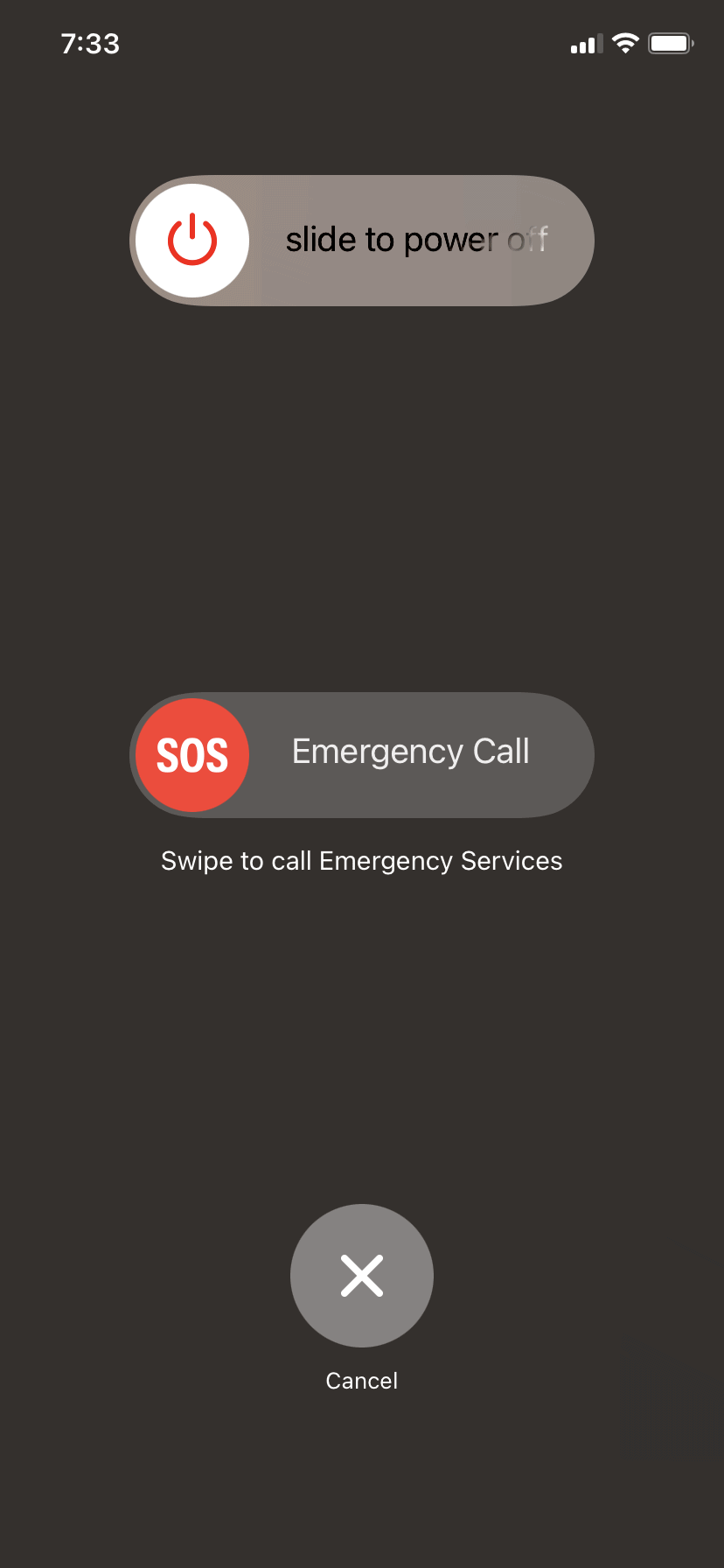
2.1 Restart koj iPhone
Rov pib dua koj lub iPhone tuaj yeem tshem tawm cov teeb meem ib ntus thiab rov ua dua cov peev txheej hauv lub system. Tua lub cuab yeej, tos ob peb feeb, thiab rov qhib dua.
2.2 Ua Kom Muaj Chaw Khaws Khoom Dawb
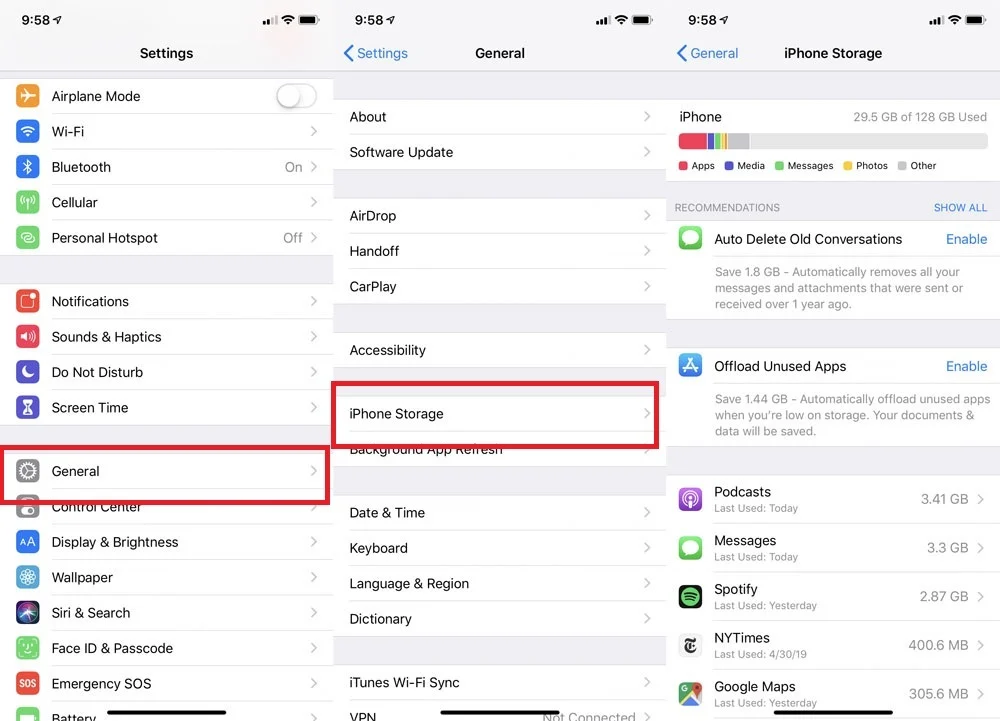
Mus rau
Chaw> General> iPhone Cia
kom pom tias dab tsi siv qhov chaw ntau. Tshem tawm cov apps tsis siv, cov downloads loj, cov yeeb yaj kiab tsis tsim nyog, thiab lwm cov ntaub ntawv uas koj tsis xav tau lawm.
2.3 Hloov Kho Koj Cov Apps
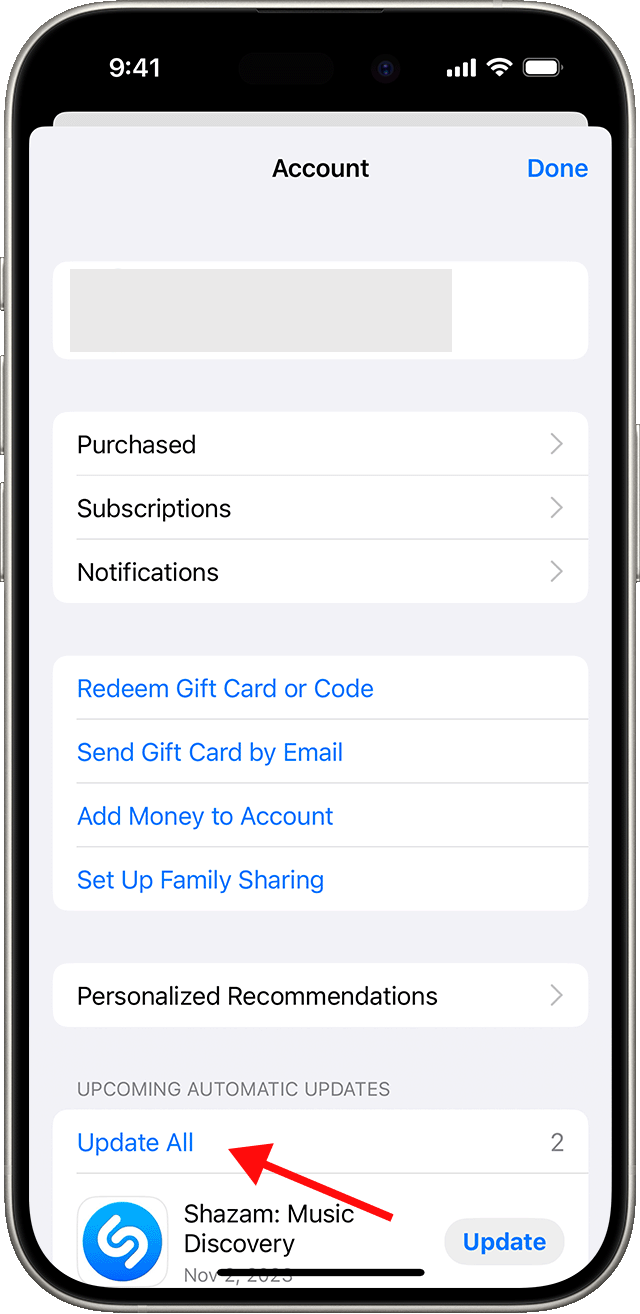
Qhib App Store thiab nruab cov hloov tshiab uas muaj. Kev ua kom cov apps tshiab tuaj yeem txhim kho lawv qhov sib xws thiab kev ua haujlwm ntawm iOS 26.
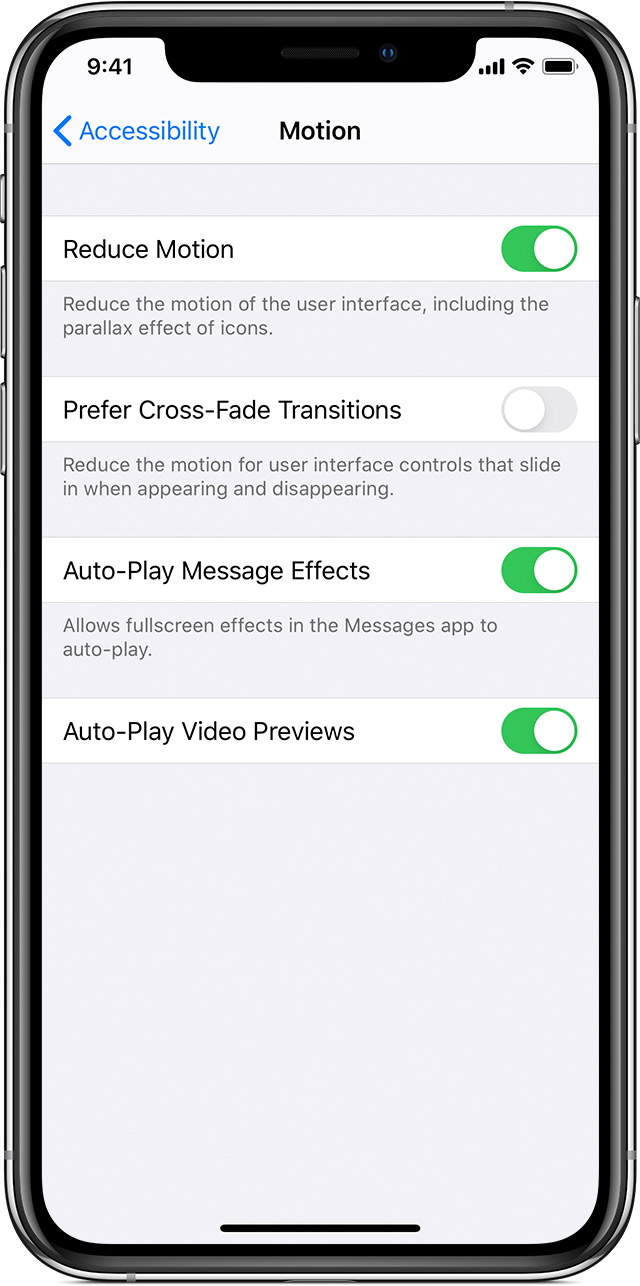
2.4 Txo Cov Teeb Meem Pom Kev
Yog tias cov animations thiab transitions zoo li qeeb, qhib
Txo Kev Txav Mus Los
hauv qab
Chaw > Kev Nkag Tau > Kev Txav Mus Los
Txo cov teebmeem pom kev tuaj yeem ua rau lub interface zoo li teb tau zoo dua.
2.5 Tshawb xyuas kev noj qab haus huv ntawm lub roj teeb
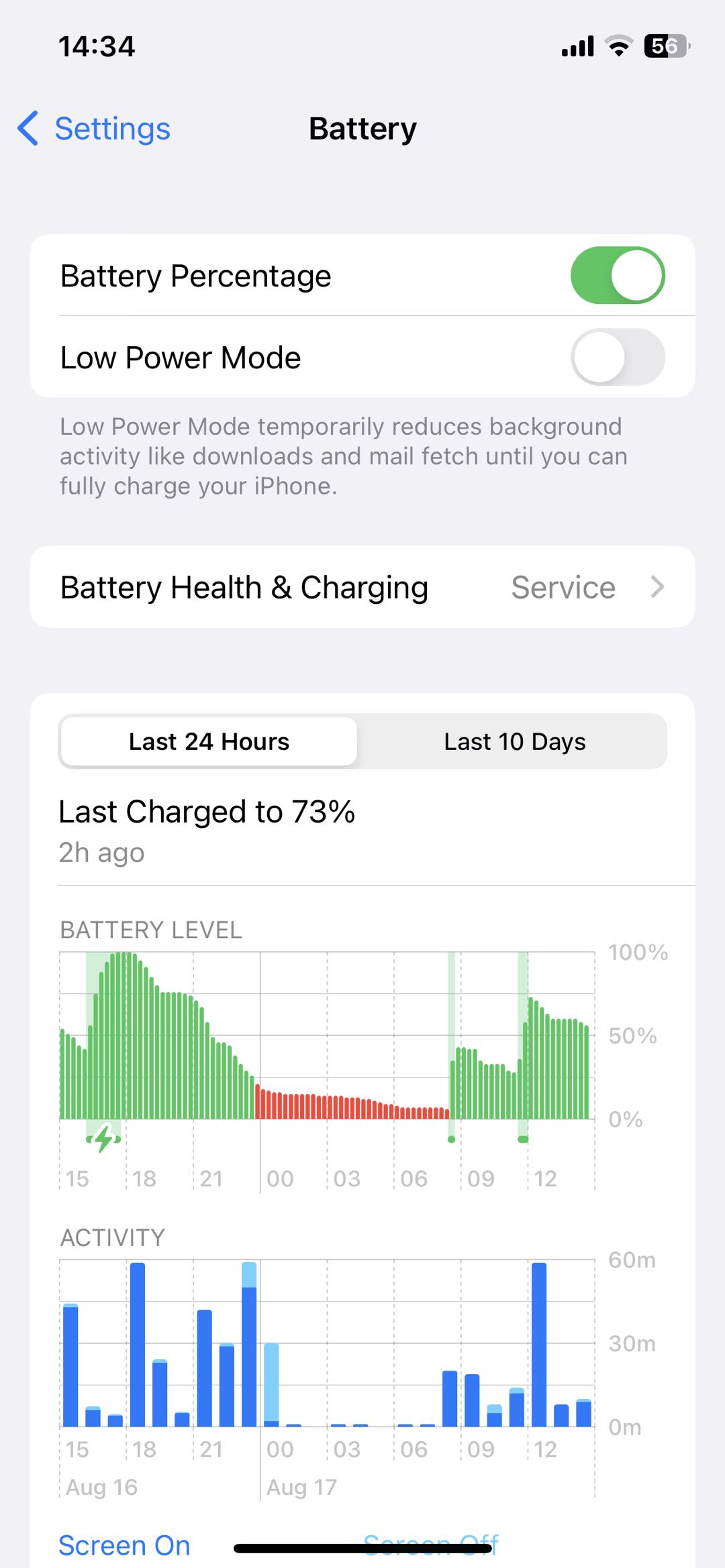
Mus rau
Chaw> Roj teeb> Roj Teeb Noj Qab Haus Huv & Them
thiab xyuas seb koj lub roj teeb puas zoo. Yog tias lub roj teeb puas lawm, xav txog kev kho nws.
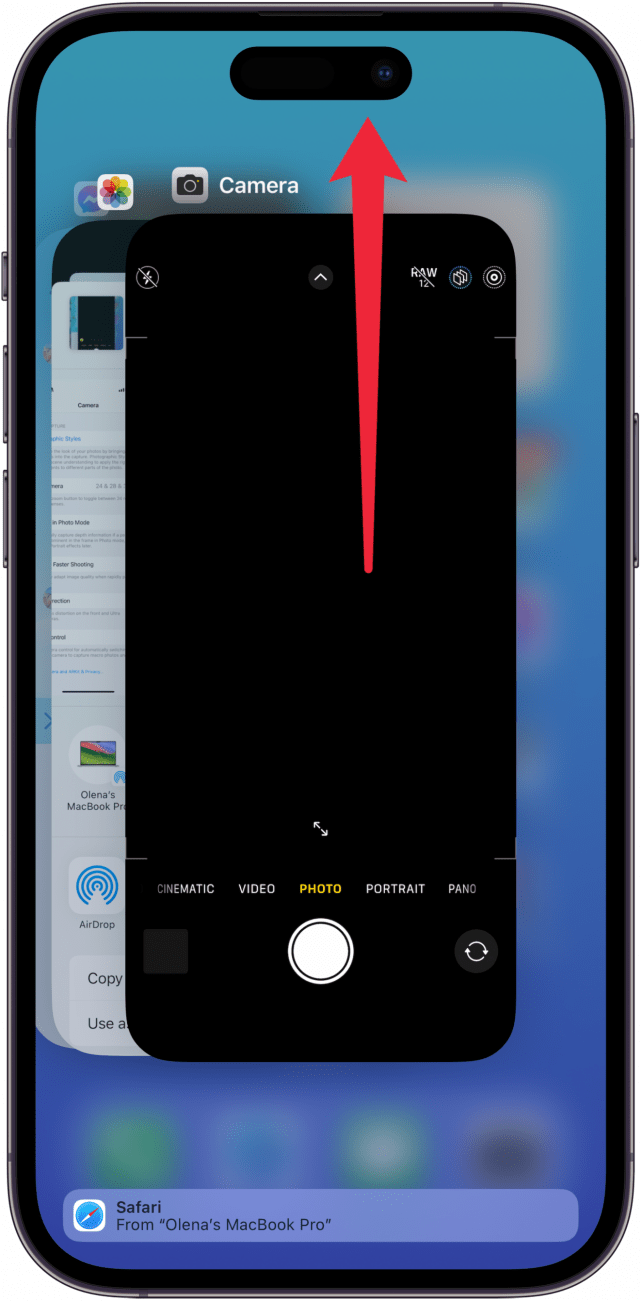
2.6 Kaw Cov Apps Uas Muaj Teeb Meem
Yog tias muaj ib qho app twg khov lossis qeeb heev, kaw thiab rov qhib dua. Yog tias qhov teeb meem tseem muaj, hloov kho lossis rov nruab dua daim ntawv thov.
2.7 Tos Tom Qab iOS Hloov Tshiab
Yog tias koj nyuam qhuav nruab iOS 26, muab sijhawm rau koj lub iPhone kom ua tiav qhov kev txheeb xyuas keeb kwm yav dhau los thiab kev ua kom zoo dua. Kev ua tau zoo yuav zoo dua thaum cov haujlwm no ua tiav.
2.8 Nruab Cov Kev Hloov Tshiab iOS Uas Muaj
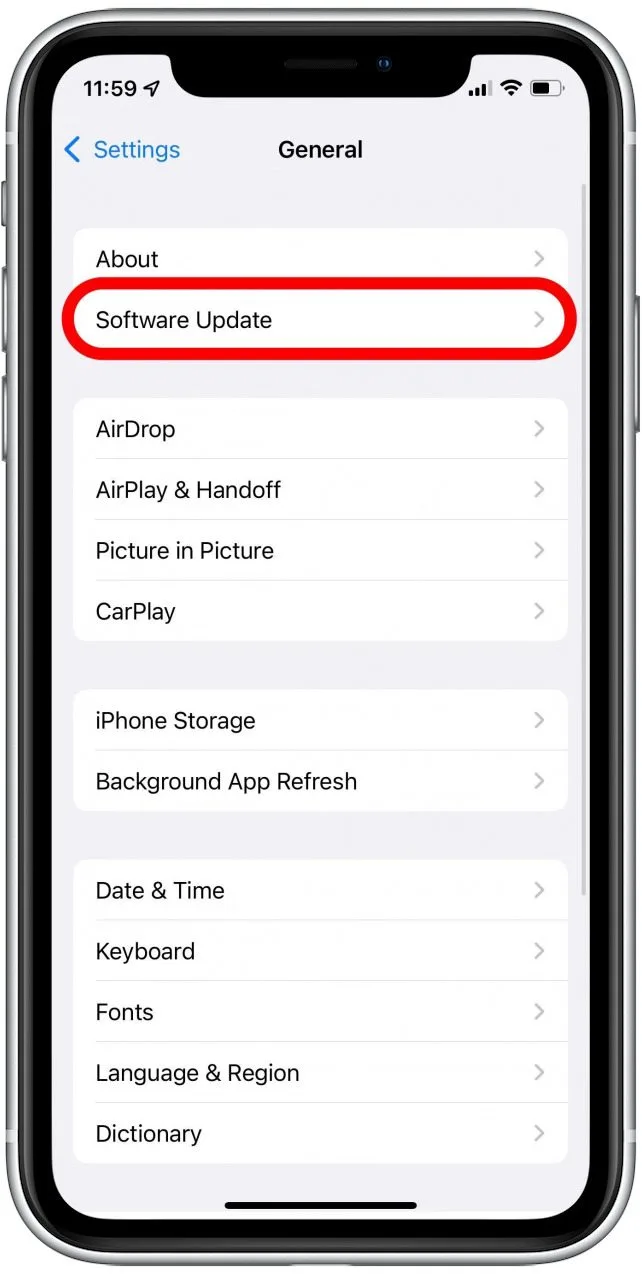
Mus rau
Chaw> General> Software Update
thiab xyuas seb puas muaj iOS version tshiab dua. Apple yuav tso tawm cov hloov tshiab uas muaj cov kev kho kab laum thiab kev txhim kho kev ua tau zoo.
2.9 Pib dua Txhua Qhov Chaw
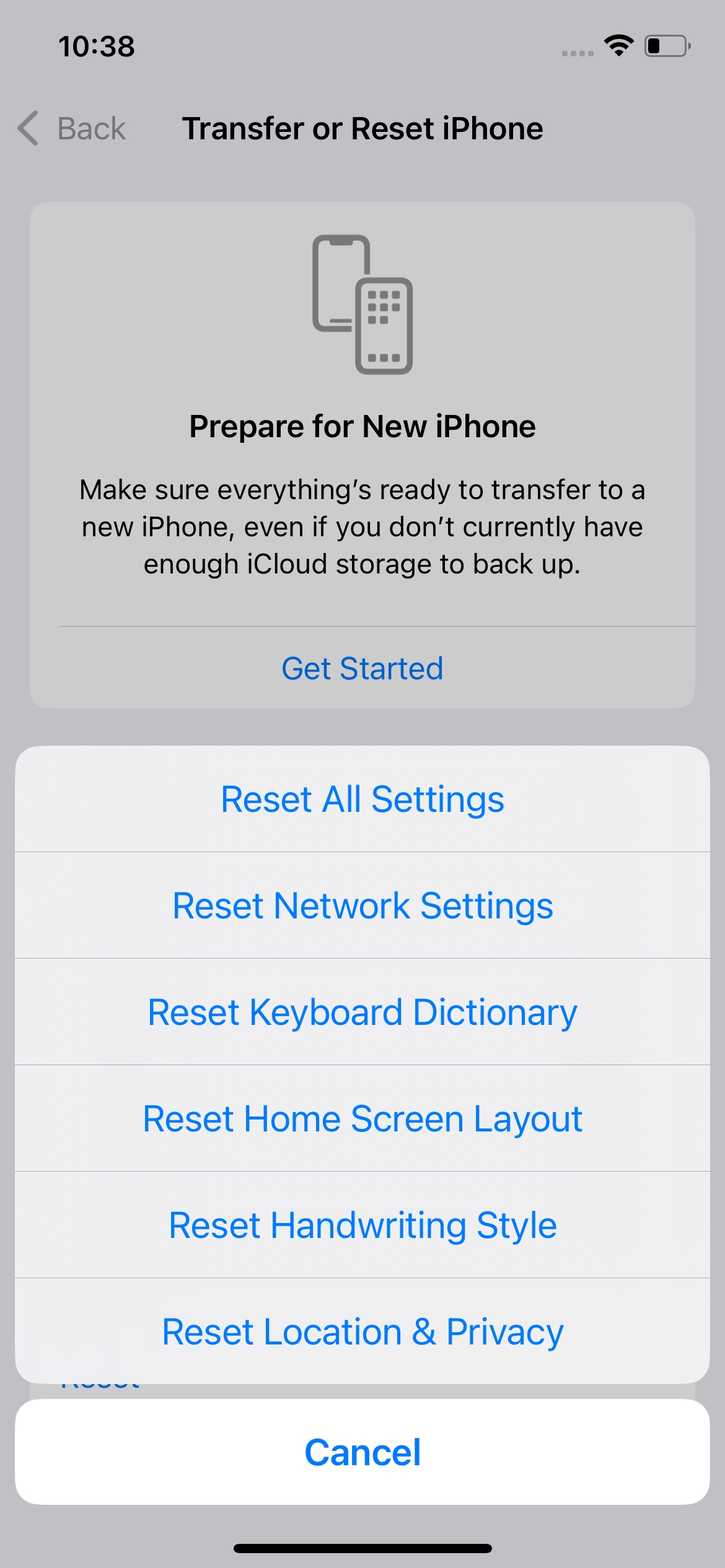
Yog tias qhov lag tseem muaj, xav txog kev pib dua qhov system settings los ntawm
Chaw> General> Hloov lossis Pib dua iPhone> Pib dua> Pib dua Txhua Chaw
Qhov no rov qab kho qhov chaw rau lawv qhov qub yam tsis tas yuav tshem tawm cov ntsiab lus tus kheej.
3. Ntxiv: Kho cov teeb meem iOS System nrog AimerLab FixMate
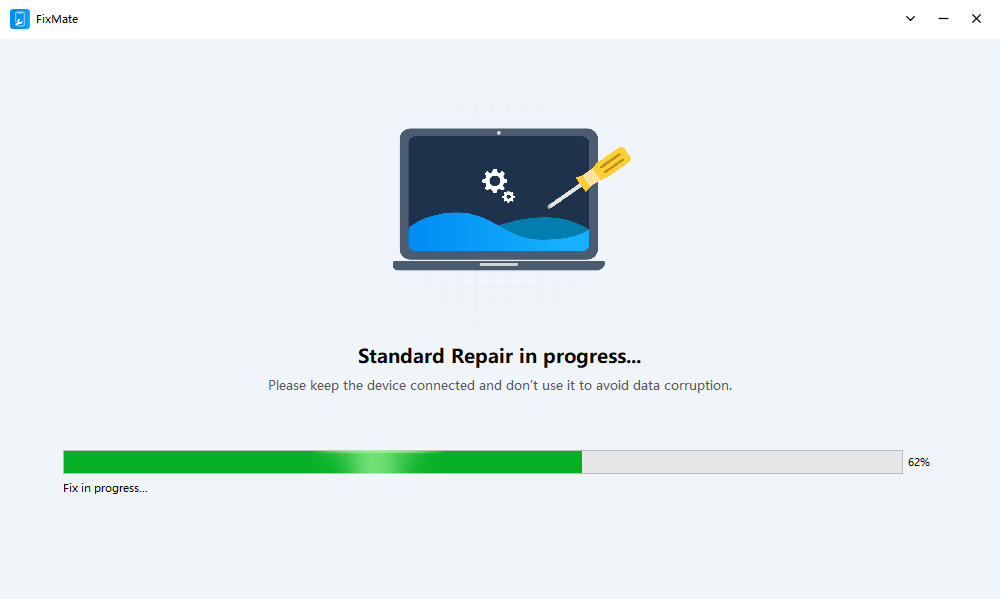
Yog tias koj lub iPhone tseem qeeb tom qab sim cov kev daws teeb meem yooj yim, qhov teeb meem yuav muaj feem cuam tshuam nrog qhov yuam kev hauv iOS system. Hauv qhov xwm txheej no, AimerLab FixMate muab kev daws teeb meem desktop tshwj xeeb rau kev kho ntau yam teeb meem ntawm iPhone thiab iPad.
FixMate yog tsim los pab cov neeg siv daws teeb meem xws li lub kaw lus khov, tus cwj pwm tsis zoo, teeb meem cuam tshuam nrog kev khau raj, thiab lwm yam kev ua yuam kev ntawm software. Nws cov txheej txheem kho uas muaj kev taw qhia ua rau nws yooj yim dua los sim kho lub iOS system yam tsis tas yuav siv cov txheej txheem daws teeb meem nyuaj.
Yuav kho cov teeb meem iOS System li cas nrog FixMate:
- Rub tawm thiab nruab FixMate rau ntawm koj lub khoos phis tawj Windows.
- Txuas koj lub iPhone rau lub khoos phis tawj siv lub USB cable tsim nyog, tom qab ntawd tso tawm FixMate thiab cia nws paub txog koj lub cuab yeej txuas nrog.
- Xaiv qhov kev xaiv kho kom haum raws li qhov teeb meem iOS uas koj tab tom ntsib.
- Ua raws li cov lus qhia ntawm qhov screen kom muab koj lub iPhone rau hauv hom uas xav tau thiab pib kho.
- Tos kom qhov kev kho tiav, tom qab ntawd rov pib dua koj lub iPhone thiab xyuas seb qhov teeb meem kev ua haujlwm puas tau daws lawm.
4. Cov lus xaus
Yog tias iOS 26 zoo li qeeb, cov kev daws teeb meem yooj yim xws li rov pib dua koj lub iPhone, tso qhov chaw cia khoom, hloov kho cov apps, thiab txhim kho qhov hloov tshiab iOS tshiab kawg yuav txhim kho kev ua tau zoo. Txawm li cas los xij, yog tias qeeb, khov, lossis lwm yam teeb meem ntawm lub kaw lus tseem muaj, AimerLab FixMate
muab ib txoj hauv kev yooj yim los kho cov teeb meem ntawm iOS system. Nrog nws cov txheej txheem kho uas tau qhia,
FixMate
tuaj yeem pab kom koj lub iPhone rov qab mus rau qhov kev paub zoo dua thiab ruaj khov dua.
- Yuav kho li cas "Tos Lwm Tus iPhone" Stuck?
- Yuav kho li cas iOS 26 siv sijhawm ntev mus download?
- Yuav ua li cas thiaj pom tau qhov chaw uas neeg feem ntau pom ntawm iPhone?
- Yuav kho li cas "Muaj qhov yuam kev txheeb xyuas tus password ntawm koj lub iPhone"?
- Yuav kho li cas "Ua tiav rau iPhone Tshiab" daig?
- Yuav ua li cas rub tawm iOS 27 Beta ntawm iPhone?
- Yuav Ua Li Cas Spoof Pokemon Go ntawm iPhone?
- Txheej txheem cej luam ntawm Aimerlab MobiGo GPS Qhov Chaw Spoofer
- Yuav hloov qhov chaw ntawm koj iPhone li cas?
- Sab saum toj 5 Fake GPS Qhov Chaw Spoofers rau iOS no
- GPS Qhov Chaw Nrhiav Lus Txhais thiab Spoofer Cov Lus Qhia
- Yuav Ua Li Cas Hloov Koj Qhov Chaw Ntawm Snapchat
- Yuav Ua Li Cas Nrhiav / Qhia / Ncua Qhov Chaw ntawm iOS li?